
How do you get Pass the Remote! on Apple TV?
Install it on the Apple TV itself: open the App Store on your Apple TV, search “Pass the Remote” and select Get. It's free to download.
- On your Apple TV, open the App Store.
- Search “Pass the Remote”.
- Select Get. When it's installed, open it from your Home Screen.
Found us on your phone? The App Store link opens the listing, but the game installs and plays on the TV. Pass the Remote! is made for Apple TV only, so it isn't available on iPhone, iPad, Mac or other TVs.
What do you need?
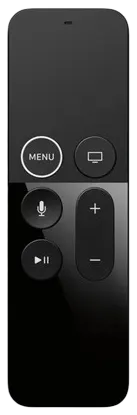
An Apple TV running tvOS 18.0 or later, and its Siri Remote. Both Siri Remote designs work: the current aluminum remote and the original black one. That's all: no phones, no game controllers and no accounts.
- tvOS 18.0 or later
- About 482.9 MB of free space
- One Siri Remote, passed from player to player


How do you set up players or teams?
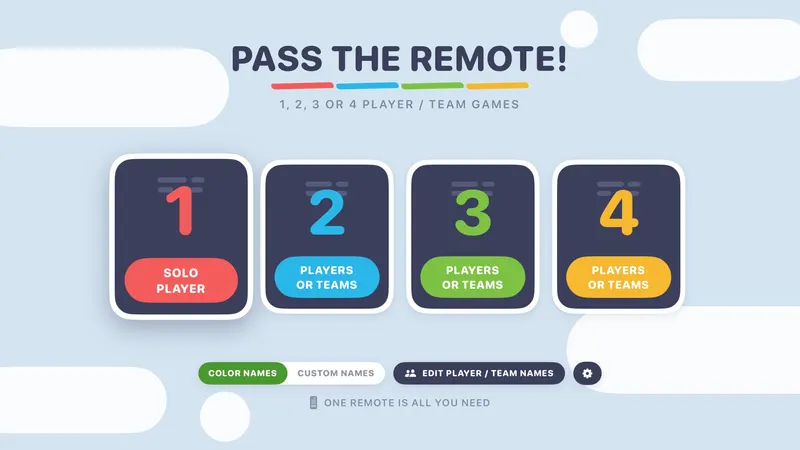
On the first screen, pick 1 for solo or 2, 3 or 4 colors. Each color can be one person or a whole team, so a big group splits into up to four color teams: Red, Blue, Green and Yellow.
- RED
- BLUE
- GREEN
- YELLOW
Use your own names. Turn on CUSTOM NAMES and choose EDIT PLAYER / TEAM NAMES to give each color a name of up to 10 characters and one of 16 avatars, like pizza, ninja, unicorn or wizard. The games then cheer for SARAH instead of RED. The same toggle flips back to color names any time.
WHO'S PLAYING? When custom names are on, games that keep score by color start with a quick check of who's in. Choose CONTINUE, or CHANGE PLAYERS to swap someone out.
How do the Siri Remote controls work?
Swipe on the remote's clickpad or touch surface to move, and click to choose. A few games also use the Play/Pause button, and every game shows its controls on screen.
The game calls the back button Menu. On the current Siri Remote that's the Back button (‹); on the original black remote it's the button marked MENU. Pressing it mid-game is safe: it asks END THIS GAME? with KEEP PLAYING already selected, and pressing it again closes the question. Timed games pause while it's showing.
| Game | Controls | Players |
|---|---|---|
| Stack It | Swipe: steer the piece Play/Pause: rotate (hold to keep turning) Click: drop it |
Solo (endless) or 2–4 colors |
| Memory | Swipe: move around the board Click: flip a tile |
2–4 colors (not available solo) |
| Charades & More | Click: got it Swipe: skip the word |
2–4 people or more: one guesser holds the remote and everyone else gives clues |
| Trivia Battle | Swipe: move between answers Click: lock in your answer Play/Pause: use your 50/50 |
Solo (20 questions in a row) or 2–4 colors (5 rounds, one question per color per round) |
| Elf Archer | Slide up or down: move fletch and aim Hold Play/Pause: draw the bow Let go: shoot |
Solo story (21 levels) or 2–4 colors on 6 multiplayer levels |
| Press Swipe Play | "Press it!": click the touch surface "Swipe it!": big swipe across the touch surface "Play it!": press play/pause "Pass it!": hand the remote to the next person (party mixes) |
Solo, or a whole group sharing one run with "Pass it!" party mixes |
| Read the Room | Swipe: swing the needle Click: lock in your guess |
2–4 colors |
| Flap Shot | Tap or click: flap | Solo or 2–4 colors (one run each) |
| Hangman | Swipe: move around the letter board Click: guess the letter |
Solo (5 words) or 2–4 colors (Round Battle, or Create Your Own Word) |
| Safecracker | Swipe: move around the keypad Click: enter a character Play/Pause: delete |
Solo, or Red vs Blue (each side can be one player or a team) |
| Splat! | Slide: move the trampoline (a quick flick moves it faster) Back (MENU): end a solo session |
Solo (endless) or 2–4 colors (3 rounds) |
Tips for big groups
Split everyone into up to four color teams, sit each team together, and always pass the remote in the same direction.
- Seat teams in passing order. Red next to Blue, Blue next to Green, and so on, so the remote never has to cross the room.
- Mix the ages on each team. A grandparent and a kid on the same color makes trivia and charades fairer and funnier.
- Pick a captain per color to hold the remote and lock in answers after the team agrees.
- Start with a loud game. Charades & More or Trivia Battle get everyone talking; save the quieter games for later.
What does Unlock Everything include?
Every game is free to play with a starter lineup. Unlock Everything is one optional $9.99 purchase that opens every locked deck, category, scene, set, court, level and item (108 more today) plus everything added later.
It supports Family Sharing, so everyone in your Family Sharing group gets it, and if Ask to Buy is on, the purchase waits for a parent's approval. Bought it before? Choose RESTORE PURCHASES from the gear icon on the home screen.
Something not working?
Check that your Apple TV is on tvOS 18.0 or later, then see the support page for help with purchases and controls.